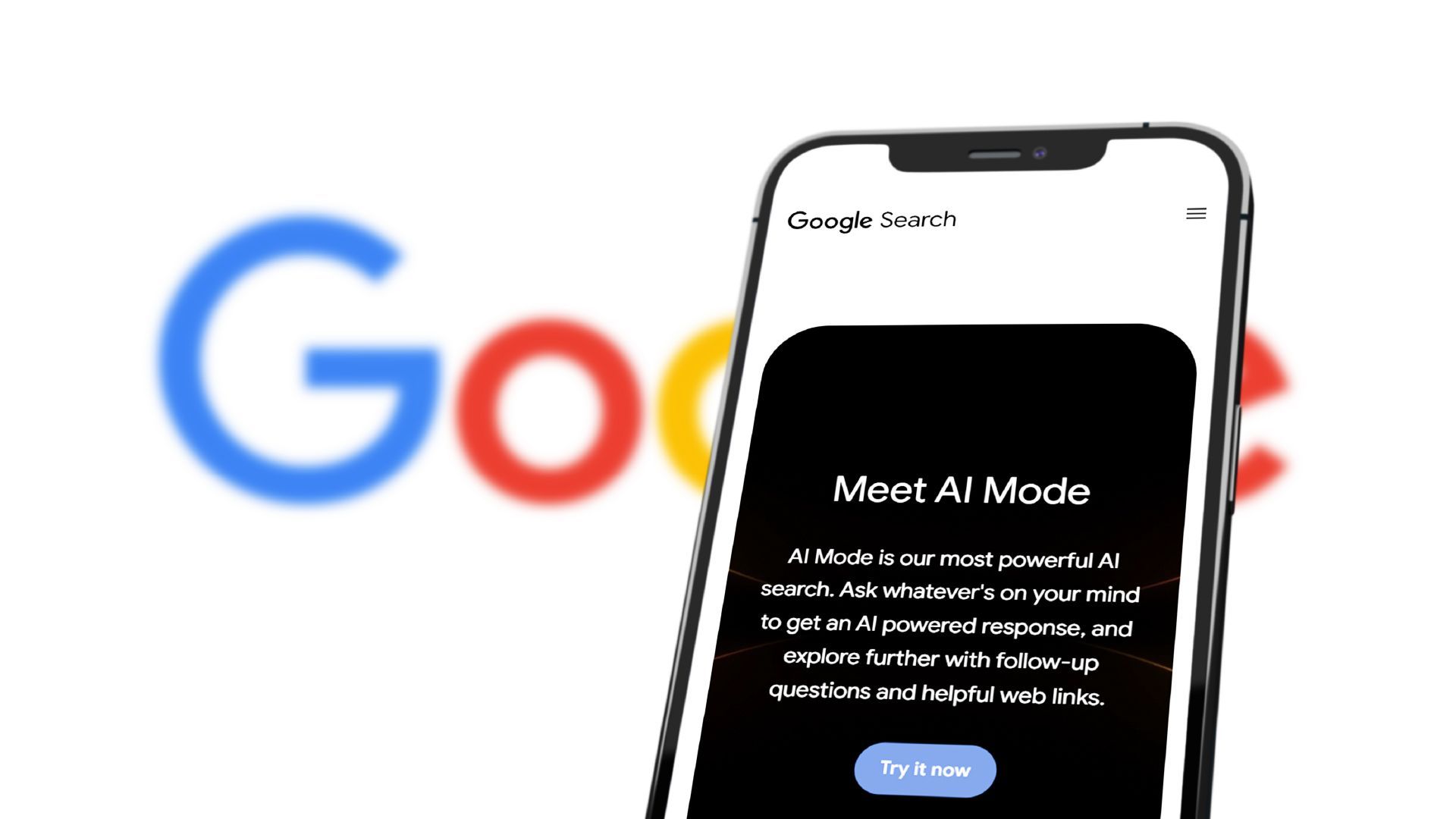
Have you noticed Google acting… different lately? You type in a question, and instead of just a list of blue links, you get a full-blown summary at the top. Sometimes it's a paragraph, sometimes it's a step-by-step guide. That’s not just a facelift; it’s Google’s new Gemini AI Mode at work.
For those of us in the marketing world or running a small business, this is a big deal. It’s changing how we find information and, honestly, how we get work done. But what is it, really? And how can you make it work for you instead of just being another weird thing Google decided to change?
Let's get into it. We'll show you how to turn it on, what to ask it, and how you can use it to make your workday a little bit easier.
What is Gemini AI Mode?
Think of classic Google Search as a massive library card catalog. It tells you where all the books (websites) are, but you still have to go find them, pull them off the shelf, and read them yourself.
Gemini AI Mode is like asking the librarian to read three of the best books on your topic and give you a quick summary.
It’s an AI layer built right into your search results. Instead of just pointing you to websites, it synthesizes information from across the web to give you a direct answer, an "AI Overview." This means you can ask more complex, conversational questions and get a tailored response right on the results page. It's designed to speed up research, spark ideas, and give you the gist of a topic without you having to click through ten different links. It's a pretty big shift from the Google we've known for decades.
How to Turn On Gemini AI Mode (Desktop & Mobile)
Ready to give it a try? Getting started is pretty simple, but the feature lives in Google's "Search Labs," which is where they let people test out new ideas.
Here’s how to enable it:
- Go to Google Search Labs: You can find it by going to labs.google.com/search or by clicking the Labs icon (it looks like a beaker 🧪) in the top-right corner of the Google homepage. You’ll need to be signed into your Google account.
- Find AI Mode: Look for the card that mentions "AI in Search" or "Gemini in Search."
- Toggle it On: Just flip the switch to enable it. That's pretty much it.
Once it’s on, you’ll start seeing AI Overviews appear for many of your searches. You can also look for a toggle within your search results to switch between the AI-powered view and the classic web results. If you ever want just the old-school links back, just click the "Web" filter at the top of the results page. Easy.
Keep in mind, it might not be available in all regions or for all accounts just yet, as Google is still rolling it out.
Prompt Guide: A Simple Framework & Examples
Talking to an AI can feel weird. The trick is to be clear and direct. You don't need fancy words; you just need to tell it exactly what you want. We use a simple framework that works almost every time:
- Goal: What do you want to achieve? (e.g., "Write an email," "Compare two products")
- Context: Who is this for? What's the background? (e.g., "for my team," "I'm a beginner baker")
- Constraints: Any rules it needs to follow? (e.g., "under 100 words," "in a friendly tone," "focus on price")
- Output: How do you want the answer formatted? (e.g., "as a bulleted list," "in a table")
You don't need to use all four every time, but keeping them in mind will get you way better answers.
10 Practical Prompts You Can Use Today
Here are some copy-and-paste examples to get you started.
Try this prompt (Explain like I’m new):
“Explain SEO in simple terms and give a 3-step action plan for a small local coffee shop.”
Try this prompt (Decision compare):
“Compare Mailchimp vs. Constant Contact for a small business with 1,000 subscribers. Include pros/cons in a table and a final recommendation.”
Try this prompt (Research starter):
“Give me a concise overview of the latest trends in social media marketing for 2025 with 5 reputable sources to read next.”
Try this prompt (Summarize a page):
“Summarize this page in bullet points and call out any potential marketing bias: [paste a URL here].”
Try this prompt (Task planning):
“Create a 7-day plan to launch a new product on Instagram. Include daily tasks and estimated time for each.”
Try this prompt (Study aid):
“Generate 10 quiz questions (with answers) about Google Analytics 4 for an intermediate-level marketer.”
Try this prompt (Content outline):
“Draft an outline with H2 and H3 headings for a blog post on 'The Benefits of Email Marketing' targeting small business owners.”
Try this prompt (Email draft):
“Write a polite follow-up email asking a potential client if they've reviewed my proposal. Keep it under 120 words with a clear call to action to book a call.”
Try this prompt (Shopping helper):
“Find the top-rated office chairs for back support under $400; list key specs and a buying checklist.”
Try this prompt (Follow-up refinement):
(After getting a response) “Based on your last answer, expand on the section about email automation with specific examples for an e-commerce store.”
A quick note: Always, always double-check the facts, figures, and links Gemini gives you. AI is helpful, but it can still make mistakes.
Everyday Use Cases for Your Business
Okay, so how do you actually use this stuff day-to-day? Here are a few ideas:
- Productivity: Drowning in emails? Ask Gemini to draft a reply to a common customer question. Need to plan your week? Ask it to create a to-do list based on your top three priorities.
- Research: Instead of reading five long articles, ask Gemini to give you an overview of a competitor's marketing strategy or summarize a new industry report. It's a great way to get up to speed quickly.
- Learning: Want to finally understand what an API is? Ask Gemini to explain it with an analogy. It's like having a patient teacher on call 24/7.
- Shopping: Need to buy a new laptop for work? Ask it to compare two models and tell you which is better for graphic design or running lots of spreadsheets.
- Quick Decisions: Planning a team lunch? Ask, "Find three lunch spots near my office that have vegan options and good reviews." Done.
Gemini vs. Other AI Tools
So, is this just Google's version of ChatGPT? Yes and no.
The biggest difference is that Gemini in Google Search is hooked up to the live, current internet. It’s designed to answer questions about what’s happening right now. This makes it great for things like news summaries, finding recent reviews, or checking product availability.
Tools like ChatGPT (the free version, at least) have a knowledge cut-off date, so they might not have the most current information. They can be awesome for creative tasks like writing a story or brainstorming ideas that don't depend on real-time data.
Think of it this way:
- Use Gemini in Search for: "What were the key takeaways from this week's marketing conference?"
- Use ChatGPT for: "Write a fictional story about a marketer who travels back in time."
Best Practices to Get Better Results
Want to become a Gemini power user? It's easy.
- Be Specific. Don't just say "Tell me about cars." Say "Compare the fuel efficiency of a 2025 Honda Civic vs. a Toyota Corolla." The more detail you give, the better the answer you'll get.
- Ask for the Format You Want. If you want a list, ask for a list! If you want a table, ask for a table. This helps the AI structure the information in a way that’s most useful for you.
- Ask for Sources. If you're doing serious research, add "...and list your sources" to your prompt. This pushes the AI to show you where it got its information so you can check it yourself.
- Iterate with Follow-ups. Your first prompt is just the start. Use follow-up questions to refine the answer. "That's great, now can you make the tone more casual?" or "Can you expand on point number three?"
FAQs
What is Gemini AI Mode?
It's an AI-powered feature in Google Search that provides direct answers and summaries (called AI Overviews) at the top of your results page, synthesizing information from across the web.
How do I turn on Gemini AI Mode in Google Search?
You can enable it in Google Search Labs (labs.google.com/search). Just find the experiment for AI in Search and toggle it on.
Is Gemini AI Mode free and available in my region?
Yes, it's currently free to use. However, it's still in an experimental phase and might not be available in all countries or languages yet.
What prompts work best for everyday tasks?
Simple, direct prompts are best. Try asking it to "summarize," "compare," "explain," "create a plan for," or "draft an email about" a specific topic.
Can I use Gemini AI Mode on mobile?
Yep! The steps to enable it through Search Labs are the same in the Google app on your phone.
How is Gemini different from ChatGPT inside search?
Gemini's main advantage in search is its direct access to real-time information from the web, making it ideal for current topics.
How do I reduce AI Overviews if I prefer classic results?
If you want the old list of links, just click the "Web" filter at the top of the search results page. This will hide the AI Overview for that search.
Final Thoughts
Look, AI in search is here to stay, and it's probably going to get even more integrated into our daily lives. It's not perfect, and you should definitely keep a healthy dose of skepticism (especially about facts and data).
But it's also a seriously powerful tool. For busy professionals and small business owners, it's a chance to get back some time, speed up tedious tasks, and maybe even come up with a few new ideas along the way.
So, turn it on. Play around with it. Ask it silly questions. Ask it hard questions. See what it can do for you. The worst that can happen is you switch back to the "Web" filter. The best that can happen is you find a new assistant you didn't know you needed.